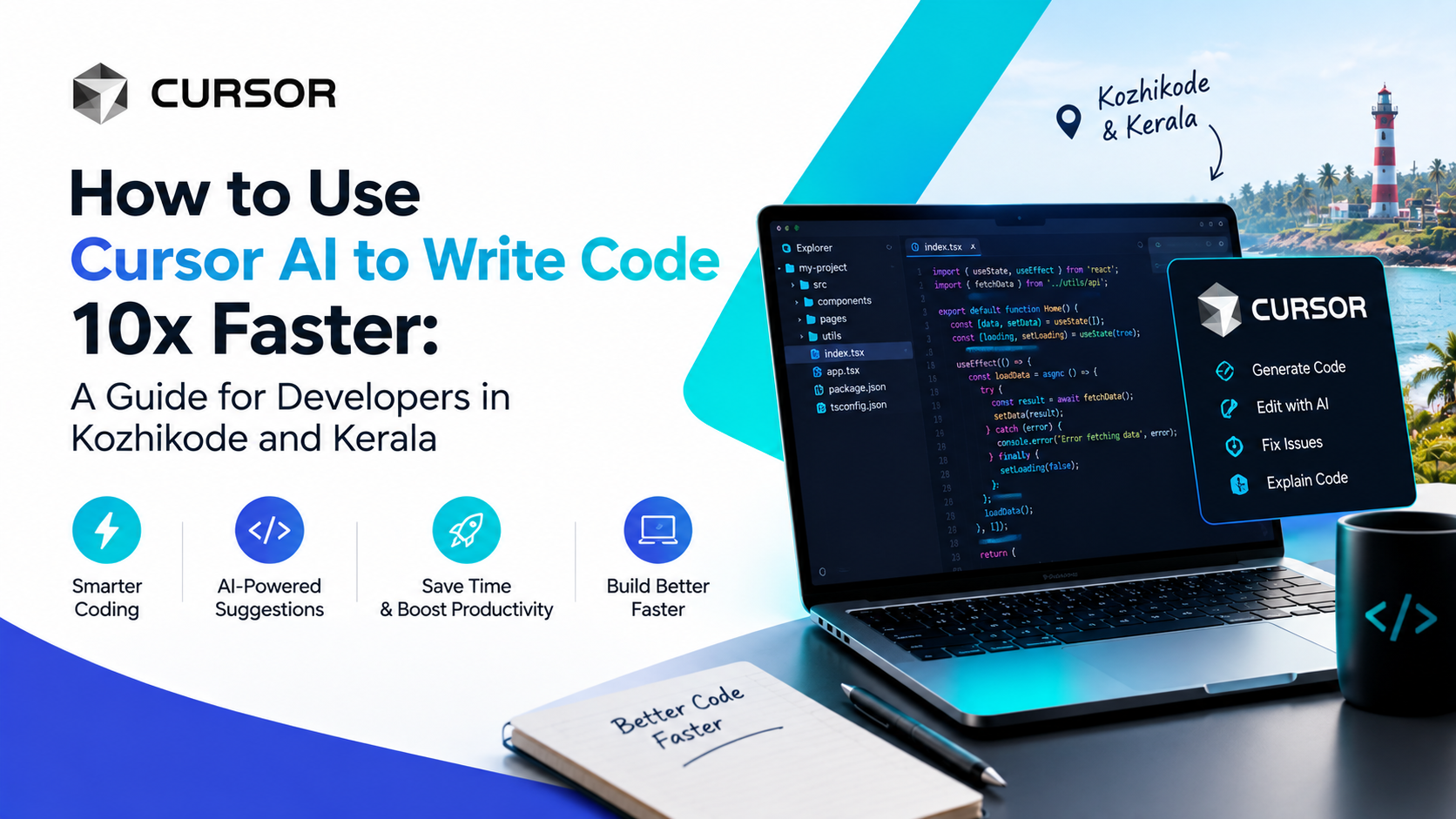
If you're a developer in Kozhikode or anywhere across Kerala, you've probably heard other coders raving about Cursor AI lately. And honestly, the hype is justified. Once you learn how to use Cursor AI to write code faster, you genuinely stop wasting hours on repetitive tasks, boilerplate code, and endless Stack Overflow searches. In this guide, we'll walk through exactly how Cursor AI works, how to set it up, and practical tips that Kerala-based developers can start using today.
What Is Cursor AI?
Cursor AI is an AI-powered code editor built on top of VS Code, designed to help developers write, edit, and debug code significantly faster. Unlike traditional editors that only offer basic autocomplete, Cursor integrates advanced AI models directly into your workflow. Consequently, you can chat with your codebase, generate entire functions from plain English prompts, and fix bugs without leaving your editor.
For full stack developers juggling frontend, backend, and database logic simultaneously, this AI coding assistant becomes less of a luxury and more of a necessity. Therefore, understanding how to use Cursor AI to write code faster is quickly becoming a core skill for modern developers, including those building products right here in Kerala's growing tech ecosystem.
Why Kerala Developers Should Pay Attention to Cursor AI in 2026
Kerala's IT scene, especially around Kozhikode, Kochi, and Thiruvananthapuram, is expanding rapidly. More startups, agencies, and remote-first companies are hiring full stack developers who can ship products quickly. Meanwhile, clients — local and international — expect faster turnaround times without compromising code quality.
This is exactly where Cursor AI shines. Since it accelerates repetitive coding tasks, developers can focus more energy on architecture, logic, and problem-solving rather than typing out standard syntax repeatedly. As a result, freelancers and agency developers in Kerala who master this tool often complete projects noticeably faster than those relying solely on traditional editors.
Getting Started: How to Install and Set Up Cursor AI
Step 1: Download Cursor AI
First, head over to the official Cursor website and download the version compatible with your operating system — Windows, macOS, or Linux.
Step 2: Import Your VS Code Settings
Since Cursor is built on VS Code's foundation, it allows you to import your existing extensions, themes, and keybindings instantly. This means you won't lose your familiar setup while gaining powerful AI features.
Step 3: Connect Your AI Model
Next, choose your preferred AI model within Cursor's settings. Most developers start with the built-in models, though you can also connect API keys for additional flexibility depending on your workflow needs.
Step 4: Open Your Project Folder
Finally, open your existing project or start a new one. Cursor automatically indexes your codebase, allowing it to understand context across multiple files rather than just the current one.
How to Use Cursor AI to Write Code Faster: Core Features Explained
1. Chat With Your Entire Codebase
One of the most powerful features is Cursor's chat panel, which understands your whole project structure. Instead of explaining context repeatedly, you can simply ask, "Where is the authentication logic handled?" and Cursor will point you directly to the relevant files.
2. Inline Code Generation (Cmd+K)
By selecting a block of code or an empty line and pressing the generation shortcut, you can describe what you want in plain English. For instance, typing "create a function to validate email addresses" instantly generates working code, saving you from manually writing common logic.
3. AI-Powered Autocomplete
Unlike basic autocomplete tools, Cursor predicts multi-line code blocks based on your coding patterns. Therefore, instead of just completing a variable name, it often anticipates entire functions or loops accurately.
4. Bug Fixing and Debugging Assistance
Whenever you encounter an error, Cursor can analyze the stack trace, explain what went wrong, and suggest a fix — often within seconds. This alone saves developers significant debugging time, especially on large full stack projects.
5. Codebase-Wide Refactoring
If you need to rename a function or restructure logic across multiple files, Cursor handles it intelligently, ensuring consistency throughout your project without manual file-by-file editing.
Practical Tips to Maximize Speed With Cursor AI
Write Clear, Specific Prompts
The quality of AI-generated code heavily depends on how clearly you describe your requirements. Instead of saying "fix this," try "fix the null pointer error occurring when the user array is empty." Consequently, you'll get more accurate, usable results.
Break Large Tasks Into Smaller Prompts
Rather than asking Cursor to "build the entire dashboard," break it down into smaller components — first the layout, then the data fetching logic, then styling. This approach generally produces cleaner, more manageable code.
Always Review Generated Code
While Cursor AI is impressively accurate, it's still essential to review generated code for logic errors or security gaps. Treat it as a highly skilled assistant, not a replacement for your own understanding.
Use It for Learning, Not Just Speed
If you're a student or junior developer in Kerala just starting out, use Cursor's explanations to understand why certain code works, rather than blindly copying suggestions. This builds real skill alongside speed.
Combine With Version Control
Since AI-generated changes can sometimes be unpredictable, always commit your code frequently using Git. This way, you can easily roll back if a generated change doesn't work as expected.
How Cursor AI Fits Into a Full Stack Developer's Workflow
For full stack developers, Cursor genuinely shines across the entire stack — frontend components, backend APIs, database queries, and even DevOps configuration files. Whether you're building a React component, writing an Express route, or debugging a MongoDB query, Cursor understands context across all these layers simultaneously.
If you're currently building your full stack development skills and want structured, industry-relevant training alongside AI tools like Cursor, checking out a dedicated full stack development course in Kozhikode can help you learn these workflows properly rather than piecing things together on your own.
Common Mistakes Developers Make With Cursor AI
- Over-relying on AI without understanding the logic — this weakens your problem-solving skills over time.
- Writing vague prompts — leads to inaccurate or generic code suggestions.
- Skipping code review — AI-generated code can occasionally introduce subtle bugs.
- Not indexing the full project — reduces Cursor's ability to provide contextually accurate suggestions.
- Ignoring security best practices — always double-check authentication, API keys, and data handling logic manually.
Why This Skill Matters for Kerala's Growing Tech Market
As more Kerala-based companies adopt AI-integrated development workflows, developers who confidently use tools like Cursor AI naturally stand out during hiring and freelance opportunities. Furthermore, agencies and startups increasingly prioritize speed and efficiency, making AI fluency a genuine competitive advantage rather than just a bonus skill.
If you're also interested in how AI tools are reshaping search visibility and digital growth alongside development, it's worth exploring how SEO and AI search strategies are evolving in parallel, since many full stack developers today also need a working understanding of how their projects get discovered online.
Final Thoughts
At the end of the day, learning how to use Cursor AI to write code faster isn't just about typing less it's about thinking more strategically while letting AI handle repetitive groundwork. Whether you're a freelancer in Kozhikode, a student building your first full stack project, or an experienced developer looking to speed up delivery timelines, Cursor AI offers a genuinely practical edge in 2026's fast-moving development landscape.
Frequently Asked Questions (FAQs)
1. Is Cursor AI free to use?Cursor offers a free tier with limited AI requests, along with paid plans for developers who need higher usage limits and advanced models.
2. Does Cursor AI work with existing VS Code extensions?Yes, since Cursor is built on VS Code, most existing extensions, themes, and keybindings can be imported directly.
3. Can beginners use Cursor AI effectively?Absolutely. Beginners can use Cursor's explanations and suggestions as a learning tool, though understanding the underlying logic remains important.
4. Is Cursor AI safe for handling sensitive project data?Cursor generally follows standard data handling practices, but developers working on sensitive projects should review its privacy settings and avoid sharing confidential credentials in prompts.
5. Does using Cursor AI replace the need to learn coding fundamentals?No, it doesn't. Cursor accelerates coding tasks, but a strong understanding of programming fundamentals remains essential for building reliable, scalable applications.