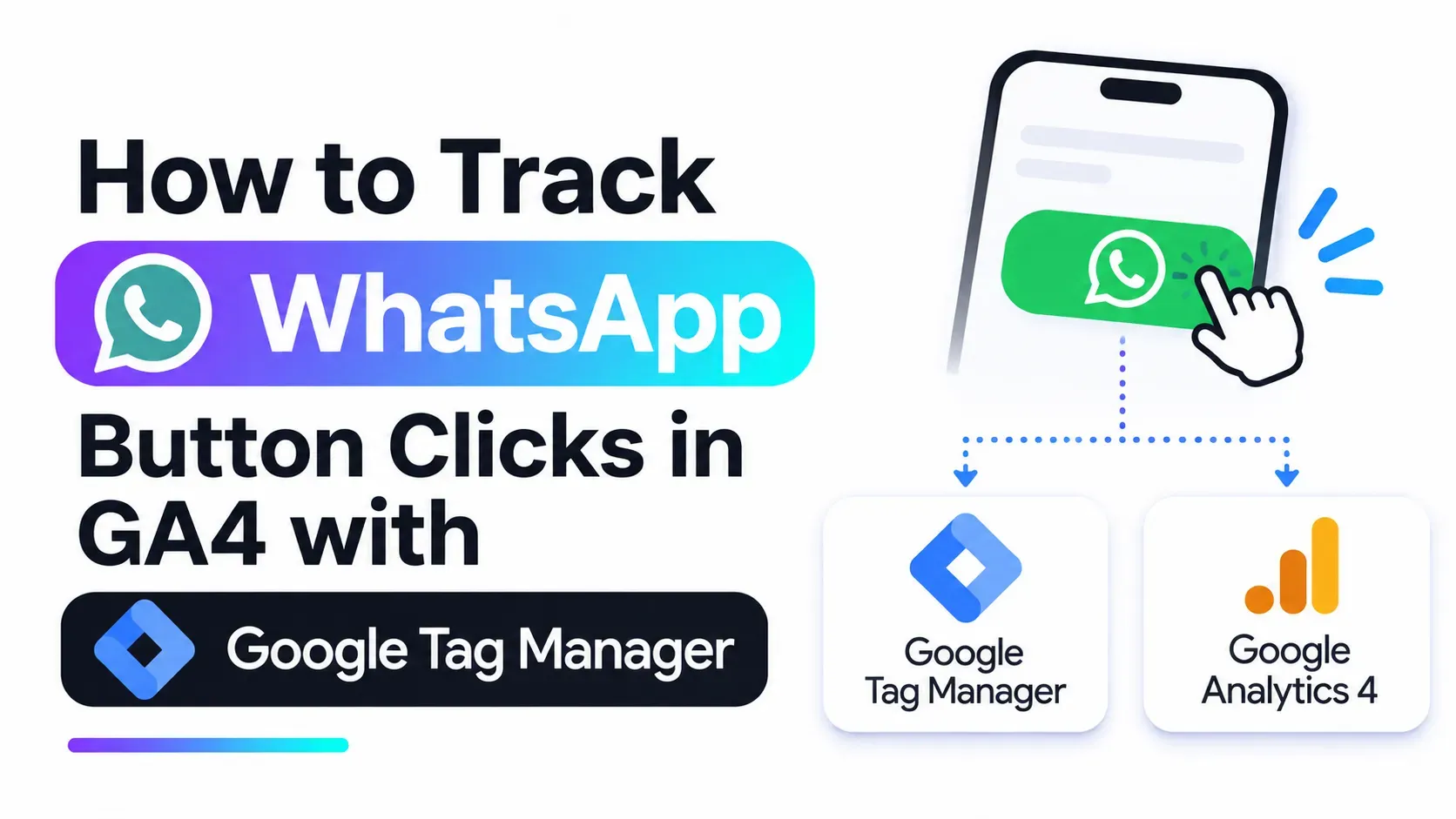
Your boutique website has a green WhatsApp button floating in the corner. Visitors come in from Instagram every day, and some of them must be tapping it. But when you open GA4 (Google Analytics 4), you cannot say how many.
That gap is common, and it is fixable in under an hour. This guide shows you how to track WhatsApp button clicks in GA4 with Google Tag Manager (GTM), test them properly, and read the results.
You do not need to write code. You do need patience for a few settings screens.
Quick Answer
To track WhatsApp button clicks in GA4, create a click trigger in Google Tag Manager that fires when the Click URL contains "wa.me". Attach it to a GA4 event tag named whatsapp_click. Test it in preview mode, publish the container, and then mark the event as a key event in GA4.
Key Takeaways
- GA4 may already log a generic outbound click, but a named event like whatsapp_click is much easier to report on.
- Use a Just Links trigger if your button is a normal link, and All Elements if it is a button or widget.
- Test in Tag Manager preview mode before you publish anything.
- Mark whatsapp_click as a key event, and expect standard reports to lag behind.
- You are measuring clicks, not chats. Never send visitor personal data to GA4.
Why should you track WhatsApp button clicks in GA4?
Tracking tells you whether your WhatsApp button actually gets used. Without it, you are guessing which pages and traffic sources lead to enquiries.
Once the event is live, you can answer questions like these:
- Which pages get the most WhatsApp clicks?
- Do visitors from Instagram click more than visitors from Google?
- Did a new page layout help or hurt?
One honest limit: a click is not a conversation. Someone can tap the button and never send a message. Treat the number as interest, not as sales.
Does GA4 already track WhatsApp clicks automatically?
Possibly, but only in a generic way. Google lists a "click" event among its automatically collected events that fires when a user clicks a link leading away from your domain.
A wa.me link leaves your domain, so it may be caught by that event. The trouble is that the same event also records every other outbound link, such as a map or a social profile.
A dedicated event solves that:
- It records only WhatsApp clicks, so your reports stay clean.
- It has a clear name you can recognise at a glance.
- It is easier to mark as a key event.
Avoid naming it "click". Google reserves some event names, so pick a distinct one such as whatsapp_click. Use only letters, numbers and underscores, and start with a letter.
What do you need before you start?
You need three things in place before you open the trigger screen. Check each one first, because a missing piece is the most common reason tracking fails.
- GTM installed on your site. The GTM container code must already load on every page.
- GA4 connected through GTM. Your Google tag or GA4 configuration should already send page views.
- Your WhatsApp link format. Open the page source or hover over the button and note the link. WhatsApp's click-to-chat link format is followed by the number in international format.
If your button uses a different link, such as an older api.whatsapp.com address, note that. You will match against whatever text the link actually contains.
How do you create the WhatsApp click trigger in Google Tag Manager?
The trigger tells GTM when to react. Here you will tell it to fire only when someone clicks a link that contains "wa.me".
Follow these steps:
- In GTM, go to Variables and enable the built-in click variables, especially Click URL.
- Go to Triggers and click New.
- Choose the trigger type Click - Just Links (see the next section if your button is not a link).
- Under "This trigger fires on", select Some Link Clicks.
- Set the condition to Click URL contains wa.me.
- Name it something clear, such as "Click - WhatsApp link", and save.
Google's Tag Manager click trigger guide shows the same flow, including how to add conditions so the trigger fires only on the clicks you want.
When should you use All Elements instead of Just Links?
The two trigger types watch different things, so choose by how your button is built.
Trigger type | What it tracks | Use it when |
|---|---|---|
Just Links | Clicks on HTML links that use the <a> element | Your button is a normal link to wa.me |
All Elements | Clicks on any element, such as links, images and buttons | Your button is an image, a <button> or a chat widget |
With All Elements, a click on a button's icon may not carry the link address. If that happens, match on something else, such as the button's Click Classes or Click ID, which you can see in preview mode.
How do you create the GA4 event tag for WhatsApp clicks?
The tag is the action GTM takes when the trigger fires. Here it sends an event named whatsapp_click to GA4.
- Go to Tags and click New.
- Choose the tag type Google Analytics: GA4 Event.
- Select your Google tag or Measurement ID, so the event goes to the right GA4 property.
- Set the Event Name to whatsapp_click.
- Under event parameters, add a parameter such as link_url with the value {{Click URL}}.
- Under Triggering, choose the "Click - WhatsApp link" trigger you just made.
- Name the tag clearly, such as "GA4 Event - whatsapp_click", and save.
The link_url parameter is optional. It is handy if you later run more than one WhatsApp link, such as one per service page.
How do you test WhatsApp click tracking before you publish?
Always test first. A tag that looks right on screen can still fail on the live page.
- In GTM, click Preview and enter your website address.
- Tag Assistant opens and connects to your site. Google describes this as letting you inspect which tags fired and in which order.
- On your site, click the WhatsApp button.
- Back in Tag Assistant, look for a click event in the summary, then check that your GA4 event tag shows as fired.
- Open GA4, go to Admin, then DebugView under Data display, and look for whatsapp_click arriving in real time.
DebugView needs debug mode. Tag Assistant and Tag Manager preview mode can switch it on for your own session, so you normally do not need extra setup while testing.
If the tag does not fire, do not publish yet. Use the troubleshooting section below.
How do you mark WhatsApp clicks as a key event in GA4?
A key event tells GA4 that this action matters to your business. Marking whatsapp_click gives you a dedicated count of WhatsApp enquiries.
- In GA4, go to Admin, then Events under Data display.
- Find whatsapp_click in the recent events list. It appears only after GA4 has received it at least once.
- Click the star beside it to mark it as a key event.
Standard reports can take up to 24 hours to show the key event, while Realtime updates within minutes. Google explains the steps in its guide on how to mark an event as a key event.
Do not be alarmed if the event is missing on day one. Send a few test clicks, wait, and check again.
Where can you see WhatsApp click data in GA4 reports?
You can read the numbers in a few places. Start simple, then add detail.
- Realtime report: confirms the event fires right now.
- Events report: shows the total count of whatsapp_click over time.
- Key events: once marked, the event gets its own count in reports.
To break clicks down by link address, register your link_url parameter as an event-scoped custom dimension in GA4. Until you do, the parameter is collected but may not appear in standard reports. New dimensions can take a day or two before you can report on them.
If your GA4 property is brand new, this walkthrough on how to set up GA4 from scratch covers the basics of getting reports to work.
Why is your WhatsApp click not being tracked?
When nothing shows up, the cause is usually one of a handful of small things. Work through this list in order.
- Click URL variable not enabled: turn on the built-in click variables in GTM.
- Wrong trigger type: a Just Links trigger will not fire on a button that is not an <a> link.
- Link text does not match: your condition says "wa.me", but the link uses a different address format.
- Container not published: preview mode works for you only. Visitors see nothing until you publish.
- Consent banner blocking: Google notes that DebugView events do not appear if consent mode is active and the visitor has not consented to Analytics cookies, so test with consent granted.
- Widget inside an iframe: some third-party chat widgets load in a separate frame that your trigger cannot see.
Remember that this method only measures clicks on your own website. A chat started from inside an Instagram or Facebook ad may never touch your site, so it will not appear here.
Is tracking WhatsApp button clicks safe for visitor privacy?
Yes, as long as you only record the click and not who the person is. The tracking above does not need any personal information at all.
Google's policy is that no personally identifiable information should be passed to Google. It gives email addresses and personal mobile numbers as examples, and says the list is not exhaustive.
Keep these habits:
- Record only the fact that a click happened, plus harmless details such as the page.
- Never add visitor-typed text, names or phone numbers as event parameters.
- Check that your site's privacy notice and consent banner match what you track.
For legal questions about consent and data protection, confirm with a qualified professional. This article is not legal advice.
Where can you practise GA4 and tag tracking as a beginner?
You can practise on your own site or on a small test site. Build one tag, break it, fix it, and repeat. That loop teaches more than reading.
If you want guided practice, the digital marketing course covering GA4 and performance reporting lists GA4 and reporting among its topics. It is full-time, runs for three months, and needs no prior marketing experience.
Final thoughts on tracking WhatsApp button clicks
To track WhatsApp button clicks in GA4 with Google Tag Manager, you need one trigger, one event tag, a careful test and a key event. After that, your WhatsApp button stops being a mystery and starts giving you real data.
Tracking skills like this are part of what Milaaj Digital Academy in Kozhikode teaches to beginners. Until then, set up your first whatsapp_click tag today and watch it appear in DebugView.
Frequently Asked Questions
Does GA4 track WhatsApp clicks automatically?
Not specifically. GA4 may log a generic outbound click when a link leaves your domain, which can include wa.me links. A dedicated whatsapp_click event gives cleaner, easier reporting.
Which GTM trigger should I use for a WhatsApp button?
Use Click - Just Links if the button is a normal link, with the condition Click URL contains wa.me. Use Click - All Elements if the button is an image, a button element or a chat widget.
How do I know my WhatsApp click event is working?
Use Tag Manager preview mode, click your button, and confirm the GA4 event tag fired. Then check DebugView in GA4 for whatsapp_click. Only publish the container after both checks pass.
Can I mark WhatsApp clicks as a key event?
Yes. Once GA4 has received whatsapp_click at least once, go to Admin, then Events, and mark it as a key event. Standard reports can take up to 24 hours to reflect it.
Does click tracking collect the visitor's phone number?
No, not if you set it up as shown. The event records that a click happened and optionally the link address. Never add visitor-typed text or personal details as event parameters.
Want to learn GA4 and tracking the structured way?
Setting up tracking gets easier with practice and someone to ask. If you want to learn analytics and digital marketing properly, get in touch with the team and tell them what you want to measure and where you are starting from.
Course details, scholarship terms, and start dates can change, so confirm the latest information with the Milaaj Digital Academy team before you enrol.