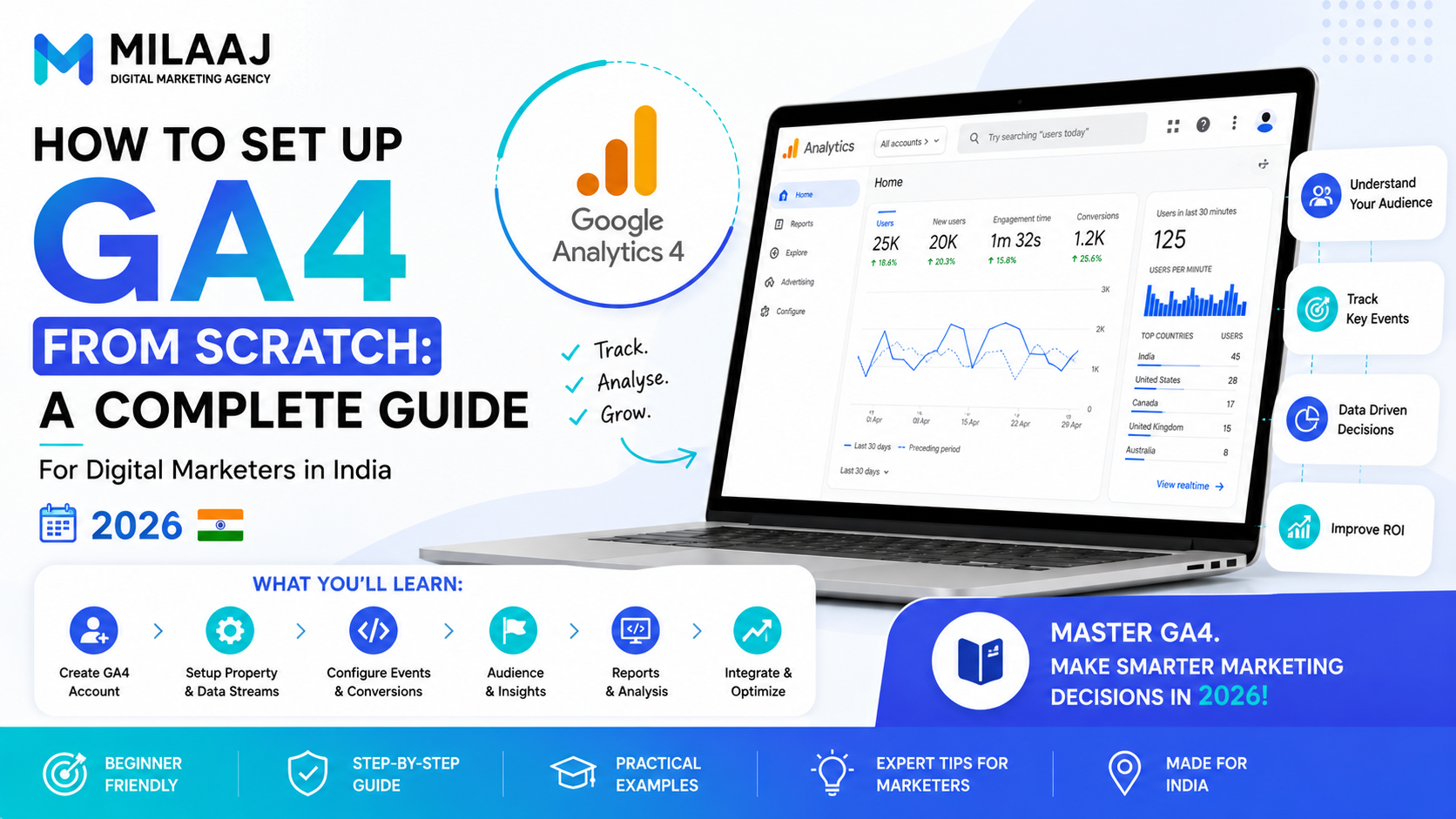
In today's fast-paced digital ecosystem, relying on basic website traffic numbers or guesswork is a recipe for wasted marketing budgets. Whether you manage an e-commerce platform in Bengaluru, direct growth campaigns for an enterprise brand in Mumbai, or scale a local service agency, clean analytics data forms the foundation of every successful business decision.
Google Analytics 4 (GA4) serves as the primary analytics infrastructure for modern growth teams. Unlike older, session-based platforms, GA4 uses a flexible, event-based tracking model that monitors complete user journeys across web applications, mobile platforms, and digital touchpoints.
[Universal Analytics - Outdated] ──► Tracks disconnected sessions & pageviews[Google Analytics 4 - Modern] ──► Tracks unified user journeys via event streams
Learning how to set up GA4 from scratch is essential for any professional looking to master modern digital growth tools. This step-by-step operational guide walks you through building a clean, future-proof analytics setup tailored specifically for the Indian digital market in 2026.
Understanding the Core Framework: The GA4 Data Architecture
Before jumping into technical tags and code snippets, you need to understand how GA4 processes information. GA4 treats every user interaction whether a page view, a link click, a video play, or a form submission as a distinct event.
The 4 Event Categories in GA4
To keep your reports organized, GA4 divides incoming events into four distinct layers:
- Automatically Collected Events: Actions logged by default when you install the basic measurement tag (such as first_visit, session_start, and user_engagement).
- Enhanced Measurement Events: Interactions you can toggle on with a single click inside the dashboard (including scroll tracking, outbound link clicks, site search, and video engagement).
- Recommended Events: Standardized event names provided by Google for specific industries, such as purchase, add_to_cart, or generate_lead.
- Custom Events: Tailored events and parameters you create manually to track unique business interactions that fall outside standard categories.
Step-by-Step Implementation Blueprint
Follow this structured setup sequence to build your tracking infrastructure cleanly without polluting your production data.
1.Create the GA4 Property and Data Stream:Phase 1: Account Creation.
Log into your Google Analytics account, navigate to the Admin Panel, and click Create Property. Set your reporting time zone specifically to India (GMT+05:30) and select Indian Rupee (INR) as your operational currency. Next, choose your platform type select Web and enter your primary domain URL to generate your unique Measurement ID (formatted as G-XXXXXXXXXX).
2.Deploy via Google Tag Manager (GTM):Phase 2: Tag Deployment.
Do not paste raw JavaScript snippets directly into your website header. Instead, open your Google Tag Manager container and create a new tag. Select the Google Tag template, enter your Measurement ID, and set the triggering rule to fire on Initialization - All Pages. Publish your GTM container to deploy the script site-wide safely.
3.Configure Internal IP Filters and Data Retention Settings:Phase 3: Data Hygiene.
Prevent your internal team's traffic from skewing your reports. Go to Admin ──► Data Streams ──► Configure Tag Settings ──► Define Internal Traffic. Add your office and remote team IP addresses. Then, navigate to Data Settings ──► Data Retention and switch the default retention window from 2 months to 14 months to retain long-term historical analysis capabilities.
4.Register Custom Dimensions and Key Events:Phase 4: Parameter Mapping.
When you send custom data parameters alongside your event tags, you must register them inside GA4 to view them in your reports. Go to Admin ──► Custom Definitions and create custom user or event dimensions. Next, open Events, locate your primary goal actions (like generate_lead or purchase), and toggle them as Key Events to enable conversion attribution modeling.
Setting Up High-Value Conversion Tracking
Standard traffic numbers only tell half the story. To measure your actual return on marketing spend, you must track meaningful conversion actions across your site.
Tracking Form Submissions and Lead Capture
Most lead generation websites rely on contact forms or pop-ups. To capture these interactions accurately, configure a custom trigger inside Google Tag Manager that listens for successful form submissions.
Pairing GTM event triggers with custom parameter values lets you pass critical details such as selected product categories or lead values directly into your analytics dashboard. If you want to build a strong foundational knowledge of how to structure technical optimization workflows, explore the modules inside our comprehensive SEO and AI Search Optimization Course. Learning how user intent connects with analytics tracking ensures your organic growth strategies deliver measurable revenue.
[Form Trigger Fired] ──► [GTM Pushes Event Data] ──► [GA4 Registers Key Event]
Verifying Your Setup with DebugView
Never assume your tracking works without testing it first. GA4 includes a built-in testing environment called DebugView that lets you watch events fire in real time.
- Install the Google Analytics Debugger browser extension or open your container using GTM's Preview Mode.
- Navigate to your live website and perform key user actions scroll down pages, click buttons, and submit test forms.
- Open GA4 Admin ──► DebugView in a separate tab.
- Verify that your incoming events display in the real-time timeline stream with their associated parameters attached correctly.
Building Essential Custom Reports for Growth
The default GA4 reports can sometimes feel sparse. To extract actionable business insights, use the Explore tab to build custom reporting workspaces.
The Funnel Exploration Technique
Create a multi-step funnel report to pinpoint exactly where users drop off in your conversion journey:
- Step 1: Session Start (session_start)
- Step 2: Product Page View (view_item)
- Step 3: Lead Form Click (click_lead_form)
- Step 4: Form Submission (generate_lead)
Analyzing these drop-off steps highlights friction points on your site, helping you focus your conversion rate optimization (CRO) efforts where they will have the biggest impact.
To master advanced performance marketing techniques, creative asset optimization, and user journey analytics, consider exploring our flagship Digital Marketing Course. Learning how to connect raw data with paid marketing campaigns helps you scale ad budgets efficiently and improve your overall return on ad spend (ROAS).
Frequently Asked Questions (FAQs)
Why am I seeing a discrepancy between website visitors and GA4 sessions?
Discrepancies often happen because of browser ad blockers, delayed script loading, or consent banners blocking cookie storage. Setting up server-side tagging alongside Google Tag Manager helps minimize data loss and improves tracking accuracy.
What is the difference between a conversion and a "Key Event" in GA4?
Google updated its terminology to bring consistency across platforms. Standard non-monetary goals previously called "Conversions" inside GA4 are now classified as Key Events. When these events are exported to Google Ads for ad bidding, they are categorized as Conversions.
How long does it take for data to show up in standard GA4 reports?
While the Realtime report and DebugView display incoming activity within seconds, standard reporting dashboards and exploration modules typically require 24 to 48 hours to fully process and update your data.
Should I connect GA4 directly to Google Search Console?
Yes, absolutely. Linking Google Search Console with your GA4 property unlocks dedicated organic search reports. This lets you analyze exact search queries, landing page impression volumes, and post-click user engagement directly inside your analytics workspace.
Master the Future of Digital Marketing
Learning how to set up GA4 from scratch gives you an essential technical foundation for managing modern growth campaigns. By organizing your data architecture cleanly, deploying tags via GTM, and setting up accurate key events, you turn raw analytics into clear, actionable business strategies.
Take time to audit your analytics setup, verify your conversion triggers in DebugView, and align your metrics with your core business goals. If you want hands-on mentorship and structured guidance to advance your career, explore the industry-ready learning tracks available on the Milaaj Digital Academy Platform. Developing practical analytics skills ensures you stay ahead in today's data-driven market.